
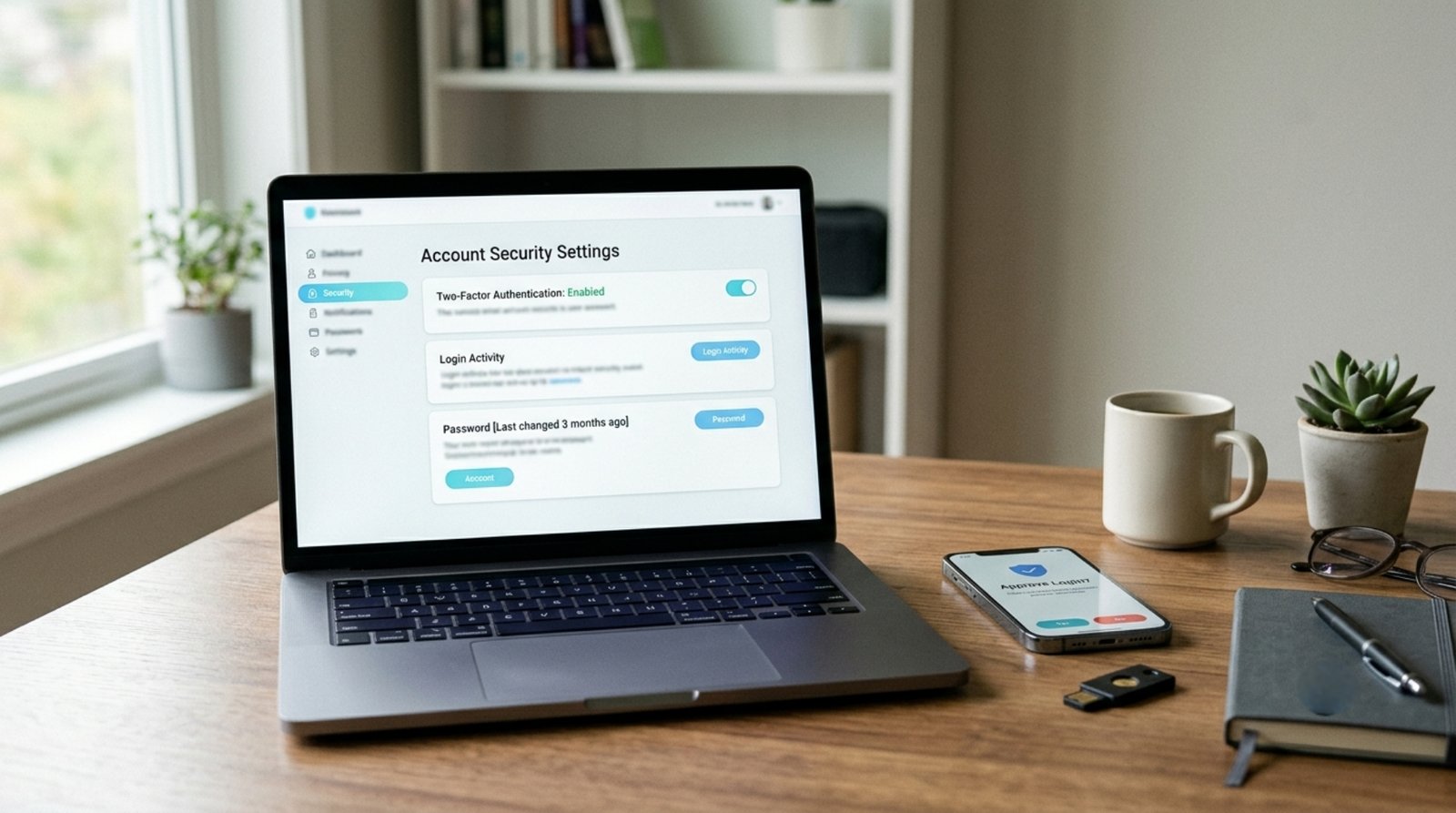
How to Protect Your Online Accounts: 12 Cybersecurity Tips Everyone Should Know in 2026

Your online accounts contain more personal information than you may realize. Email accounts can contain private conversations and password-reset links, social media accounts contain personal information and contacts, while shopping and financial services may store payment details and transaction history.
That makes account security an important part of everyday digital life.
The good news is that you do not need to be a cybersecurity expert to significantly improve your online security. A few practical habits can reduce many common risks, especially when they are combined with strong passwords, two-factor authentication, software updates, and careful handling of suspicious messages.
In this guide, you will learn how to protect your online accounts with practical cybersecurity steps that can be applied to email, social media, shopping accounts, cloud services, and other online platforms.
Important: No security method can guarantee that an account will never be compromised. The goal is to reduce unnecessary risk and make unauthorized access more difficult.
Why Online Account Security Matters
A compromised account can create problems beyond the account itself.
For example, if someone gains access to your email account, they may be able to use password-reset functions to access other services connected to that email address.
A compromised social media account could be used to send fraudulent messages to your contacts.
A stolen shopping account could expose saved addresses, orders, or other personal information.
This is why account security should be viewed as a connected system rather than a collection of individual passwords.
Your most important accounts deserve the strongest protection.
These usually include:
- Primary email
- Banking and financial services
- Password manager
- Cloud storage
- Social media
- Work accounts
- Important business accounts
- Accounts containing sensitive personal information
1. Use a Different Password for Every Important Account
One of the most important cybersecurity rules is also one of the simplest:
Do not reuse the same password across multiple important accounts.
Imagine you use the same password for an online forum, your email, and a shopping account.
If the forum suffers a data breach and your password becomes available to attackers, the same password may be tested against your other accounts.
This is known as credential stuffing.
Using unique passwords limits the damage caused by a compromised service.
Your email password should be different from your social media password, which should be different from your shopping and work passwords.
What Makes a Strong Password?
A strong password should generally be:
- Long
- Unique
- Difficult to guess
- Not based on obvious personal information
- Not reused elsewhere
Avoid passwords based on names, birthdays, phone numbers, common phrases, or predictable patterns.
2. Use a Password Manager
Remembering dozens of unique passwords is difficult.
A password manager can solve much of this problem by securely storing passwords and helping you generate unique ones.
Instead of remembering dozens of passwords, you may only need to remember the master password protecting your password manager.
When choosing a password manager, consider:
- Security design
- Encryption
- Device support
- Recovery options
- Reputation
- Privacy practices
- Ability to generate strong passwords
A password manager can also make it easier to stop reusing passwords.
3. Turn On Two-Factor Authentication
Two-factor authentication, commonly called 2FA, adds another verification step after your password.
For example, logging in may require:
- Your password
- A code or authentication method from another device or service
This provides additional protection if your password is stolen.
Depending on the service, you may encounter:
- Authentication apps
- Security keys
- Passkeys
- SMS codes
- Email verification
- Biometric authentication
Not every method provides the same level of protection, but using an additional authentication factor can substantially improve account security compared with relying only on a password.
When available, review the security options offered by the specific service.
4. Consider Passkeys When Available
Passkeys are becoming an alternative to traditional passwords on supported websites and devices.
Instead of typing a password, a passkey can use cryptographic credentials stored on your device or password manager.
Authentication may involve:
- Fingerprint
- Face recognition
- Device PIN
- Screen lock
One advantage is that passkeys are designed differently from traditional passwords and can help reduce exposure to phishing attacks.
However, support and recovery options vary between services, so users should understand how account recovery works before changing their authentication setup.
5. Protect Your Email Account First
Your primary email account deserves special attention.
Why?
Because email is often connected to many other accounts.
If someone gains access to your email, they may attempt to reset passwords for other services.
Your email account should therefore have:
- A unique strong password
- Two-factor authentication or another strong authentication method
- Updated recovery information
- A review of active sessions
- Security alerts enabled when available
Periodically check whether unfamiliar devices or sessions are connected to the account.
6. Learn How to Recognize Phishing
Phishing is one of the most common ways attackers attempt to steal login credentials.
A phishing message may pretend to come from:
- A bank
- A social network
- A delivery company
- A workplace
- A government service
- A popular technology company
- A friend or colleague
The message may ask you to click a link, verify your account, open an attachment, or provide a password or verification code.
Some phishing messages are easy to recognize, while others can look surprisingly convincing.
Warning Signs
Be cautious when a message:
- Creates extreme urgency
- Threatens immediate account closure
- Requests your password
- Requests a verification code
- Contains a suspicious link
- Includes an unexpected attachment
- Comes from an unfamiliar sender
- Uses a slightly incorrect domain
- Asks for unusual financial information
If you are unsure, do not use the link in the message.
Instead, open the official website or application directly.
7. Never Share Verification Codes
Treat login verification codes as sensitive information.
If someone contacts you and asks:
“Send me the code you just received.”
Stop and verify the situation.
Legitimate services generally do not need you to give a login verification code to another person.
Attackers may already have your password and only need the verification code to complete the login.
This is why a verification code should be treated almost like a password.
8. Keep Your Devices Updated
Cybersecurity is not only about account settings.
The devices you use to access those accounts matter too.
Keep your:
- Operating system
- Web browser
- Mobile applications
- Security software
- Important desktop software
reasonably up to date.
Software updates often include security fixes.
Delaying updates indefinitely can leave known vulnerabilities unpatched.
If automatic updates are available and appropriate for your device, enabling them can simplify maintenance.
9. Be Careful With Public Wi-Fi
Public Wi-Fi can be convenient in airports, hotels, cafes, universities, and other public locations.
However, you should avoid assuming that every public network is trustworthy.
Attackers can create networks with misleading names or attempt to intercept traffic in certain circumstances.
When using public Wi-Fi:
- Avoid entering sensitive information on suspicious networks
- Verify the network name with the business when possible
- Keep your device updated
- Use HTTPS websites
- Avoid installing unknown software
- Be especially cautious with unexpected login pages
For highly sensitive activities, consider using a trusted network or your mobile connection.
10. Review Active Sessions and Connected Devices
Many online services allow you to see devices that are currently signed in.
Check this section periodically.
Look for:
- Devices you do not recognize
- Unexpected locations
- Old phones or computers
- Sessions you no longer need
If you find something suspicious, sign out of the session and change your password if appropriate.
This is particularly important after losing a device, selling an old phone, or using a shared computer.
11. Remove Apps and Services You No Longer Use
Over time, people accumulate accounts and applications they no longer need.
An old application may still have access to your account through connected permissions.
Review third-party applications connected to important accounts.
Remove access for services you no longer use.
This reduces the number of external services that can interact with your account.
The exact process depends on the platform.
Look for settings such as:
- Connected apps
- Authorized applications
- Third-party access
- Account permissions
- Login activity
12. Secure Your Recovery Options
Account recovery is extremely important.
If you lose access to your password, authentication device, or account, recovery methods may be the only way to regain access.
Review:
- Recovery email
- Recovery phone
- Backup codes
- Trusted devices
- Security keys
- Account recovery contacts, where supported
Keep recovery information current.
However, avoid adding recovery methods that you no longer control.
Protect Your Phone
For many people, the smartphone is the main gateway to their digital accounts.
It may contain:
- Banking applications
- Password managers
- Social media
- Authentication applications
- Photos
- Documents
- Personal messages
Protect your phone with an appropriate screen lock.
Depending on the device, this could include:
- PIN
- Password
- Fingerprint
- Face authentication
Also avoid leaving your phone unlocked in public places.
If your phone is lost or stolen, use the device’s available remote security features as quickly as possible.
Be Careful With Browser Extensions
Browser extensions can be useful, but they can also receive significant permissions depending on what they do.
Before installing an extension, consider:
- Who developed it?
- Is it still maintained?
- What permissions does it request?
- Does it actually need those permissions?
- Is it widely used and reputable?
- Does the extension have a clear privacy policy?
Remove extensions you no longer need.
The fewer unnecessary components installed in your browser, the easier it is to maintain your digital environment.
Don’t Download Software From Random Websites
A common mistake is searching for software and downloading the first executable file that appears.
Whenever possible, obtain software from:
- The official developer
- A trusted app store
- A reputable distribution platform
Be especially careful with websites offering:
- Cracked software
- Pirated applications
- Fake updates
- “Premium” versions for free
- Unknown browser extensions
Software that promises something valuable for free can sometimes come with unwanted or malicious components.
Back Up Important Data
Account security protects access, but backups protect information.
Important files can be lost because of:
- Hardware failure
- Accidental deletion
- Malware
- Theft
- Device damage
- Software problems
Important data may include:
- Personal documents
- Photos
- Work files
- Projects
- Financial records
- Educational materials
A backup strategy should consider where the backup is stored and whether you can actually restore your files when needed.
For particularly important information, keeping more than one copy can provide additional resilience.
What to Do If You Think Your Account Was Hacked
If you believe someone has accessed an account without permission, act quickly.
Start by:
- Accessing the account through the official website or application.
- Changing the password.
- Signing out of unfamiliar sessions.
- Enabling or reviewing two-factor authentication.
- Checking recovery information.
- Reviewing recent account activity.
- Removing suspicious connected applications.
- Checking whether important settings were changed.
- Securing other accounts that used the same password.
- Contacting the service’s official support if necessary.
If the compromised account is your primary email account, prioritize it because other services may depend on it for password recovery.
How to Build a Simple Security Routine
You do not need to spend hours every week thinking about cybersecurity.
A simple routine can help.
Every few months
Review:
- Important passwords
- Active sessions
- Connected applications
- Recovery options
- Security alerts
- Device updates
When something suspicious happens
Do not ignore it.
Investigate the account activity through the official service rather than clicking links in suspicious messages.
When you create a new account
Immediately:
- Use a unique password
- Enable additional authentication
- Save recovery information securely
- Avoid unnecessary permissions
This makes security part of the account-creation process instead of something you remember only after a problem occurs.
Cybersecurity Is About Habits
Many people imagine cybersecurity as something involving complicated hacking tools, advanced servers, or highly technical systems.
Those areas certainly exist, but everyday account security often comes down to basic habits.
A person who uses unique passwords, enables strong authentication, keeps software updated, recognizes suspicious messages, and protects their recovery information has already taken several meaningful steps toward reducing common account risks.
There is no perfect security system.
Instead, think in layers.
Your password is one layer.
Two-factor authentication is another.
Device security is another.
Phishing awareness is another.
Backups and recovery options provide additional protection.
If one layer fails, the others may still help.
Final Thoughts
Learning how to protect your online accounts does not require becoming a cybersecurity professional.
Start with the fundamentals: use unique passwords, consider a password manager, enable two-factor authentication or passkeys where appropriate, protect your email account, recognize phishing attempts, keep your devices updated, and review account activity regularly.
Also remember that security is an ongoing process.
New threats appear, software changes, and your collection of online accounts grows over time. Spending a little time maintaining your digital security can help prevent avoidable problems later.
The strongest cybersecurity routine is not necessarily the most complicated one. It is the one you can understand, maintain, and consistently follow.
Frequently Asked Questions
What is the most important thing I can do to protect my accounts?
Start by using unique passwords for important accounts and enabling strong additional authentication where available. Protecting your primary email account is especially important because it may be connected to many other services.
Is two-factor authentication worth using?
Two-factor authentication adds another layer of protection beyond a password. The exact security benefits depend on the authentication method and how it is implemented by the service.
Should I use the same password for multiple websites?
It is safer to use unique passwords for important accounts. Reusing passwords can allow a compromise at one service to affect other accounts.
Are passkeys safer than passwords?
Passkeys use a different authentication system and are designed to reduce several problems associated with traditional passwords, including certain phishing scenarios. Their availability and recovery mechanisms vary between services.
What should I do if I clicked a suspicious link?
If you entered credentials, immediately access the relevant service through its official website or application, change the password, review active sessions, and enable additional authentication if available. If you downloaded or installed something, consider checking the device for unwanted software.
How often should I change my passwords?
There is no need to change every password on a fixed schedule simply for the sake of changing it. Focus on using unique, strong credentials and change a password when there is evidence or reason to believe it has been compromised.
