
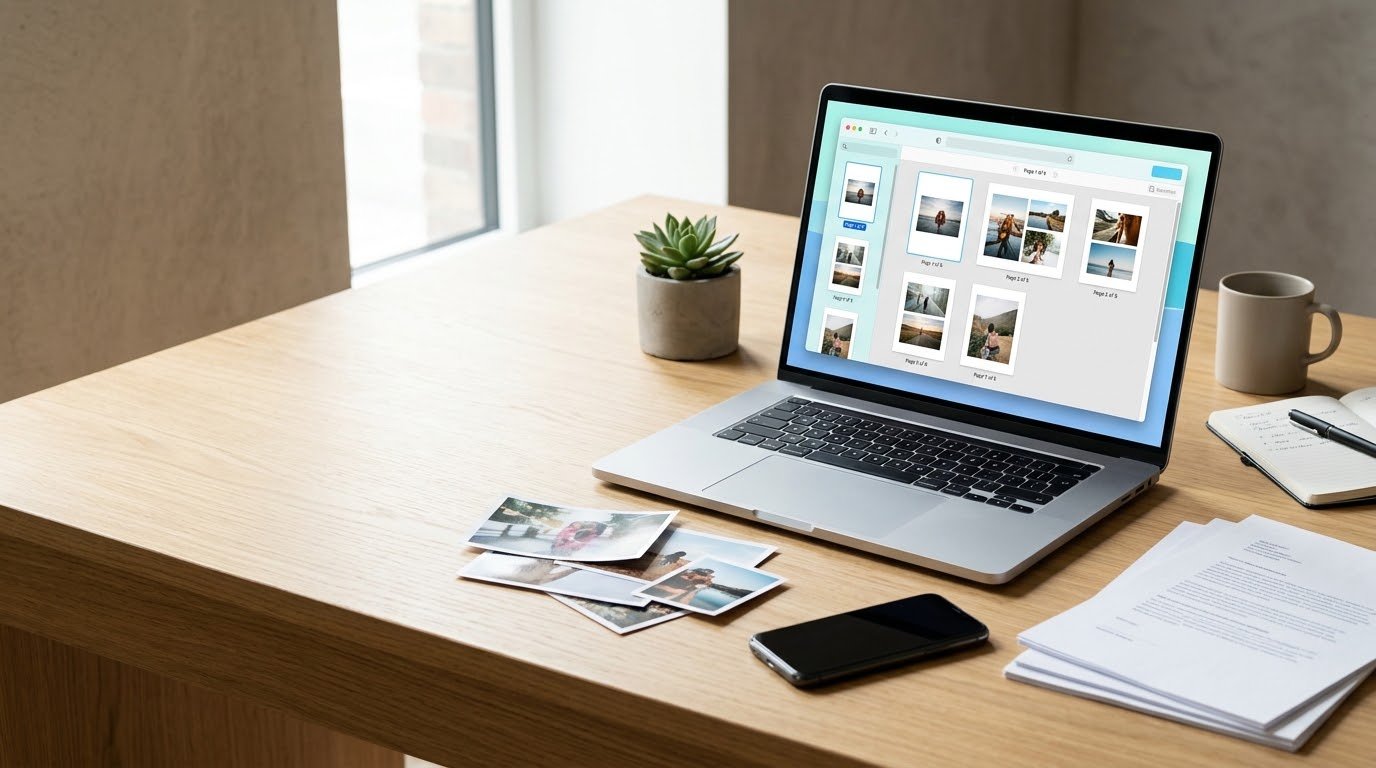

Converting a JPG image into a PDF is one of those tasks that sounds simple until you actually need to do it.
You may have scanned a document with your phone, downloaded an image that needs to be submitted as a PDF, or have several pictures that you want to combine into a single file.
Fortunately, converting JPG files to PDF is relatively easy, and you don’t necessarily need expensive software.
You can convert JPG images to PDF using a Windows computer, Mac, Android phone, iPhone, or an online tool. The best method depends on how many images you have, whether you need to combine multiple images, and whether the files contain sensitive information.
In this guide, we’ll explain several practical ways to convert JPG to PDF and how to choose the right method for your situation.
What Is the Difference Between JPG and PDF?
Before converting a file, it helps to understand the difference between the two formats.
JPG is an image format designed primarily for photographs and other visual content. It uses compression to reduce file size, which makes it convenient for sharing and storing pictures.
PDF, on the other hand, is a document format designed to preserve the appearance and structure of content across different devices and operating systems.
A PDF can contain:
- Images
- Text
- Tables
- Links
- Forms
- Multiple pages
- Other document elements
This makes PDF a common format for documents, applications, reports, receipts, scanned papers, and forms.
Why Convert JPG to PDF?
There are several reasons why someone might want to convert an image into a PDF.
For example, a school, company, or online service may require documents to be uploaded in PDF format.
Other common situations include:
- Converting scanned documents
- Combining multiple photos into one file
- Creating a digital document
- Sending documents by email
- Preparing files for printing
- Uploading forms to websites
- Creating a simple photo document
The conversion itself usually doesn’t change the actual visual content. Instead, it places the image inside a PDF document.
Method 1: Convert JPG to PDF on Windows
Windows includes built-in printing functionality that can be used to create a PDF from an image.
You don’t necessarily need to install additional software.
Step 1: Find Your JPG Image
Open File Explorer and locate the image you want to convert.
If you have multiple images, you can select them together, but make sure they’re in the order you want if you’re creating a multi-page document.
Step 2: Open the Image
Open the JPG using the default Windows image viewer or another application.
Then select the print option.
Step 3: Choose Microsoft Print to PDF
In the printer selection window, choose:
Microsoft Print to PDF
This option allows Windows to create a PDF file instead of sending the document to a physical printer.
Step 4: Select the Paper Size
Choose the paper size that matches your intended document.
For example, A4 is commonly used for documents.
You can also adjust the image size and positioning depending on the options available in the print dialog.
Step 5: Save the PDF
Click the print button.
Windows will ask you where you want to save the resulting PDF.
Choose a filename and location, then save it.
Your JPG has now been converted into a PDF.
Method 2: Convert Multiple JPG Images Into One PDF
Sometimes you don’t want a separate PDF for every image.
You may have several scanned pages and want them combined into one document.
Windows can handle this as well.
Select the JPG images you want to include, right-click them, and choose the print option if it is available in your Windows version.
Then select Microsoft Print to PDF as the printer.
The selected images can be placed into the resulting PDF as separate pages.
Before creating the file, check the order of the images.
If the pages are out of order, rename the files using numbers such as:
01.jpg
02.jpg
03.jpg
This makes it easier to organize multi-page documents.
Method 3: Convert JPG to PDF on Android
Android phones provide several ways to create PDF documents from images.
The exact steps vary depending on your phone manufacturer and Android version.
One common method is to open the image in a gallery or file application and look for a print or share option.
If a print option is available, select a PDF output option instead of a physical printer.
Some Android devices may also include document scanning features that can automatically create PDF files from photographs.
This is particularly useful when you’re scanning:
- IDs
- Receipts
- School documents
- Contracts
- Notes
- Printed forms
For better results, place the document on a flat surface and make sure there is sufficient lighting.
Method 4: Convert JPG to PDF on iPhone
iPhone users can also create PDF files from images without necessarily installing another application.
Open the image in the Photos application and use the sharing or printing options available on your device.
A common approach is to use the print preview and save or share the resulting document as a PDF.
The exact interface can change between iOS versions, so the names of individual options may differ.
If you’re converting several images, select the images first and then use the available sharing or printing workflow.
Method 5: Use an Online JPG to PDF Converter
Another simple option is an online JPG-to-PDF converter.
The general process is:
- Open the converter.
- Upload your JPG image.
- Choose the desired settings.
- Start the conversion.
- Download the resulting PDF.
Online tools can be convenient because they work from almost any device.
However, there’s an important consideration: privacy.
If your image contains sensitive information such as an ID card, passport, bank document, private contract, or personal records, uploading it to an unknown website may not be appropriate.
For sensitive documents, an offline conversion method is generally preferable when possible.
How to Convert JPG to PDF Without Losing Too Much Quality
A common concern is image quality.
When converting JPG to PDF, the image itself isn’t necessarily improved. If the original JPG is already low quality, putting it into a PDF won’t restore missing details.
For better results:
- Start with the highest-quality original image available.
- Avoid repeatedly compressing the image.
- Use an appropriate page size.
- Avoid unnecessary resizing.
- Make sure scanned documents are captured at a reasonable resolution.
- Check the final PDF before submitting it.
For text documents, a clear and properly focused photograph is much more important than simply increasing the PDF file size.
How to Reduce the PDF File Size
Sometimes a JPG converted to PDF creates a surprisingly large file.
This can happen when the original image has a high resolution or contains little compression.
If the PDF is too large to upload or send, you can reduce its size using a PDF compression tool.
However, compression usually involves a trade-off.
More aggressive compression can reduce file size but may also make text or images less clear.
For documents containing small text, always check the compressed PDF visually before sending it.
How to Combine JPG Images Into a PDF
If you have several images representing different pages, you can combine them into one PDF.
For example:
- Page 1 →
01.jpg - Page 2 →
02.jpg - Page 3 →
03.jpg - Page 4 →
04.jpg
Keeping the files organized before conversion reduces the chance of creating the pages in the wrong order.
For larger collections, dedicated PDF software or an online converter may provide additional controls for page ordering, rotation, and sizing.
How to Rotate a JPG Before Converting It
If an image is sideways or upside down, correct its orientation before creating the PDF.
Most modern image applications provide basic rotation tools.
This is especially important for scanned documents.
A PDF containing sideways pages can still technically work, but it is inconvenient to read and may look unprofessional when submitted to an organization.
Can You Convert JPG to PDF for Free?
Yes.
There are several free ways to convert JPG images to PDF, including built-in operating system features and free software.
You don’t necessarily need a paid PDF application for basic JPG-to-PDF conversion.
The main difference between free and paid tools is usually the number of advanced features they provide.
Basic conversion is a relatively simple task.
Is JPG to PDF Conversion Safe?
The conversion itself is generally straightforward.
The bigger security consideration is where you perform the conversion.
If you’re using an offline application on your own computer or phone, your files don’t need to be uploaded to a third-party server.
With online converters, your images are uploaded to a service operated by someone else.
Before uploading sensitive documents, check the website’s privacy policy and understand how uploaded files are handled and whether they are automatically deleted.
If you don’t need an online service, offline conversion can be the simpler privacy-conscious choice.
Troubleshooting Common Problems
The PDF Is Too Large
Try reducing the original image resolution or using a PDF compression tool.
Avoid reducing quality too aggressively if the PDF contains important text.
The Image Looks Blurry
The original JPG may already be low quality.
Try using the original image rather than a screenshot or repeatedly compressed copy.
Pages Are in the Wrong Order
Rename the images numerically before converting them.
For example:
01.jpg
02.jpg
03.jpg
The Page Is Rotated
Rotate the image before conversion or use a PDF application that supports page rotation.
The PDF Won’t Upload
Check the website’s file-size limit and supported file format.
If necessary, reduce the PDF size or create separate files if the receiving service allows it.
Final Thoughts
Converting JPG to PDF doesn’t have to be complicated.
On Windows, you can often use the built-in Microsoft Print to PDF feature. On smartphones, built-in sharing and printing functions can also provide a simple solution.
Online converters are convenient when you need a quick conversion, but sensitive documents should be handled carefully.
For everyday images and documents, choose the method that is easiest for your device and workflow.
And if you frequently need to convert images into documents, having a dedicated JPG to PDF tool available can make the process even faster.
Frequently Asked Questions
Can I convert JPG to PDF without installing software?
Yes. Windows and many smartphones provide built-in ways to create PDF files from images.
Can I convert multiple JPG files into one PDF?
Yes. Multiple JPG images can be combined into a single PDF, with each image becoming a separate page.
Does converting JPG to PDF improve image quality?
No. Conversion doesn’t restore details that were already lost in the original image.
Is an online JPG-to-PDF converter safe?
It depends on the service and its data-handling practices. Avoid uploading highly sensitive documents to services you don’t trust.
Can I convert JPG to PDF on my phone?
Yes. Both Android and iPhone devices can create PDFs from images using built-in or third-party tools.
What is the best image format for a document?
It depends on the use case. JPG is convenient for photographs, while PDF is generally more suitable when you need a document that preserves page structure and can contain multiple pages.
